Save places. Retrace journeys.
SpotTap is built for quick location memories, not complicated planning. Places are saved to your device first, so it remains useful on a trek, trail, or road where mobile internet is unavailable.
1. Mark a spot offline
Open SpotTap and tap Mark Spot. With location access enabled, SpotTap records your current position, time, and available accuracy directly on the phone. No account, mobile data, or Wi-Fi is needed to save it. Rename it or add a note whenever that helps you remember why it matters.
2. Record an offline journey
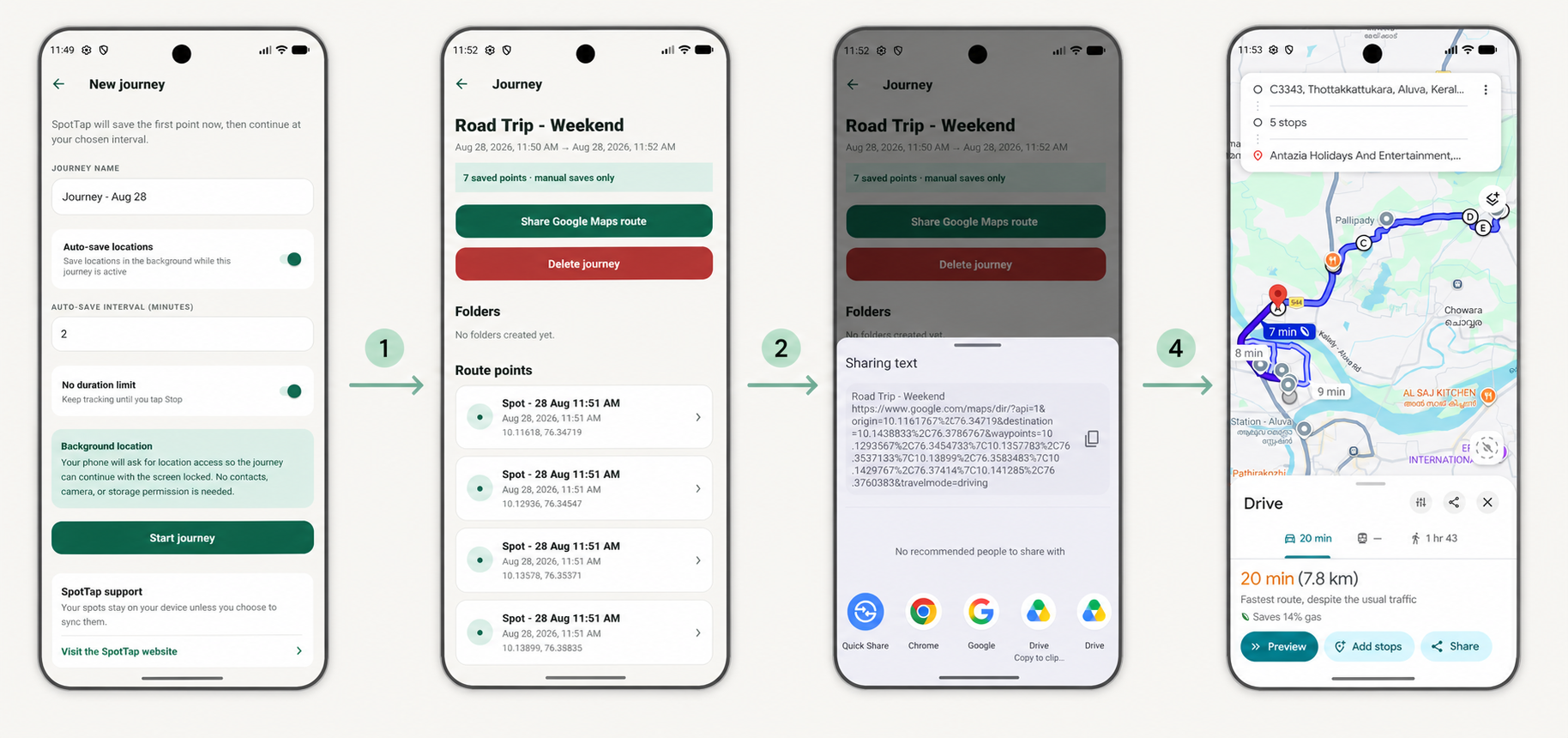
Start a journey when you want to collect an ordered sequence of places over time. Choose a name and capture interval, then pause, resume, save an extra point, or stop when your journey is complete. Automatic background tracking requires location permission plus the device permission that allows tracking while the screen is locked. Manual journeys need only the location access required when you tap Save now.
3. Share a multi-stop Google Maps route
Open a completed journey and tap Share Google Maps route. SpotTap turns the saved points into Google Maps direction URLs: the first point becomes the origin, the last point becomes the destination, and the points in between become ordered waypoints. Duplicate consecutive coordinates are removed so the route stays clean.
Google Maps URLs support up to 10 points per shared route segment. If your trek has more points, SpotTap splits it into connected segments and shares each URL as Route 1, Route 2, and so on. The segments overlap at their connecting point, so the full traced path is not silently shortened. The same sharing action is available for a folder containing selected journeys and spots.
The route links can be prepared and shared from the app without internet, but the recipient needs internet to open Google Maps and render the route. SpotTap itself does not fetch a map while you are recording offline.
4. Organise and find your trail
Use folders to group places and journeys. Open a saved place in Google Maps later, or choose a native share option after reviewing the exact location information you are sending.
5. Back up when you choose
Create an account when you want backup, restore, or cross-device sync. You must accept the Terms and Privacy Notice before account registration. The app continues to save places locally without an account. Sync happens when connectivity is available; it is not required for offline capture.